 Connects Through Whatnot's Seller API
Live Selling · Whatnot + Print Bridge
Run the show. Reliqra handles the paperwork.
Connect Whatnot to your inventory with your seller token. List to your Whatnot shop from your phone, keep sold items in sync, and send sale labels to a selected printer at your desk.
Set up live-show label printing
Keep the Reliqra extension running in a compatible browser with the signed Print Bridge helper and a configured label printer. Sale detection can send a label to that printer. Cloud sale sync alone does not print; review uncertain print outcomes before reprinting.
Connect
Create a personal access token in your Whatnot seller account and paste it in Reliqra Cloud.
List
Bulk-list from the iPhone or Android app. Every listing stays tied to its Reliqra item.
Sell Live
Run your show as usual. Keep your browser open with the extension if you want labels to print.
Print & Reconcile
Labels print, the item is marked sold, and listings elsewhere are queued to come down.
Step 1 · Connect
Your Whatnot account, linked to your inventory.
Reliqra connects through Whatnot's Seller API, on any plan. Open Settings › Connections in Reliqra Cloud and paste a personal access token from your Whatnot seller account. An optional webhook step is there if you want it.
- No browser tab needed for sales. Reliqra's servers check for new orders, so sold items stay in sync with your computer off.
- Clear connection status. See whether you're connected and when the last sync ran.
- Older tokens may need regenerating. Listing needs the merchandising permission on your token.
Whatnot and the Whatnot logo are trademarks of Whatnot Inc. Reliqra is not affiliated with or endorsed by Whatnot.
Connect before you list
Create a seller token in Whatnot, then add it in Reliqra Cloud under Settings › Connections. Review the connection before listing eligible items. Listing creates Buy It Now shop listings. Listing to shows and auctions is on the way.
Check connection and sync status
In Reliqra Cloud, open Settings › Connections and review the connected state and last-sync information shown for Whatnot. Check listing permission before assuming the account is ready to list, and keep your seller token private.
Step 2 · List
Bulk-list from your phone.
Select items and choose List on Whatnot. Reliqra creates Buy It Now listings in your Whatnot shop with your photos, titles and prices, and remembers which listing belongs to which item.
- Each item needs a photo and a price. Gems, and cards in a game or sport Reliqra doesn't recognize, are refused rather than guessed.
- No title hacks. Items are matched by ID, not by a code in the listing title.
- Prefer spreadsheets? Export a Whatnot CSV from the iPhone or Android app or Reliqra Cloud instead.
Listing goes to your Whatnot shop as Buy It Now. Shows and auctions are on the way.
List from iPhone
Select eligible items, then choose More Actions › List on Whatnot. Connect your Whatnot seller account in Reliqra Cloud first. Each item needs a photo, a price and a supported category. Gems are excluded. Listings are Buy It Now in your shop. Listing to shows and auctions is on the way.
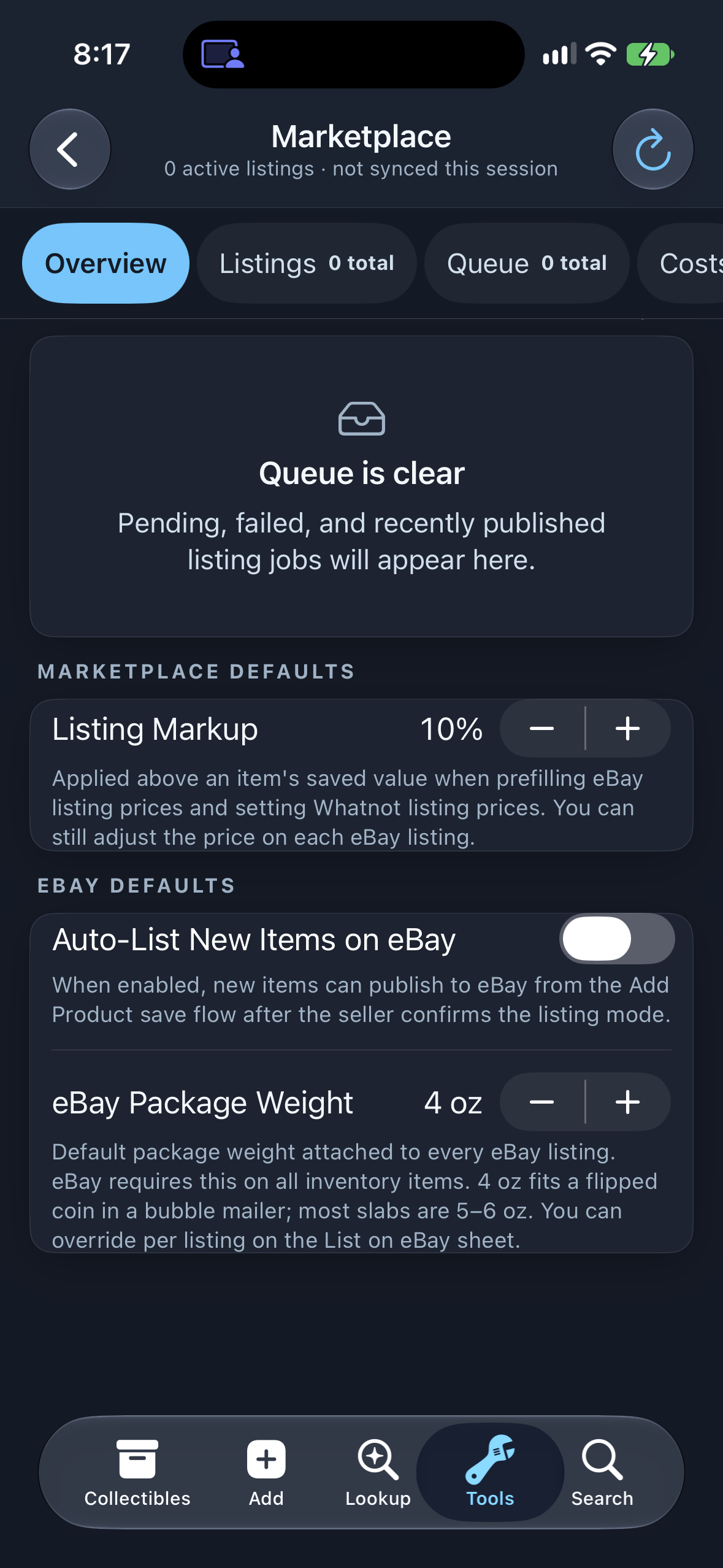
Marketplace Defaults
Set your Listing Markup.
Listing Markup adds a percentage to an item's value when you list it on eBay or Whatnot, or export their CSVs, to help cover marketplace fees. It starts at 10%, rounds up to whole dollars and has a $2 minimum. A price you set for a listing yourself is used as is.
Change it under Marketplace Defaults in the Marketplace Dashboard.
Shown: the Listing Markup setting at 10%, before any listings have synced.
Step 3 · Sell Live
Each sale lands on the right item.
When a Whatnot order comes in, Reliqra marks that item sold and keeps its original cost basis attached, so Reports can show what you actually made.
If Whatnot cancels an order later, Reliqra alerts you and leaves the item Sold until you review it.
See what each sale earned
When an item sells, its record keeps where it sold and the sale price, with marketplace fees and your realized gain when that information is available.
Review linked listings after a sale
When an item sells on eBay or your storefront, Reliqra queues removal of its other linked listings. Check the result and resolve any remaining listing; queued removal is not a guarantee against overselling.
Step 4 · Reconcile
Sold once, then queued to come down.
When an item sells on eBay or your storefront, Reliqra queues the removal of its other listings. That helps prevent overselling, and you can always pull a listing yourself.
What Runs Where
Clear about what needs your browser.
| Task | Runs From | Browser Needed? |
|---|---|---|
| Keep Whatnot sales in sync | Reliqra's servers | No |
| Bulk-list to your Whatnot shop | iPhone or Android app | No |
| Remove a listing when sold elsewhere | Reliqra's servers | No* |
| Whatnot CSV export | iPhone or Android app, or Reliqra Cloud | No (Cloud works in any browser) |
| List to eBay | iPhone or Android app; coins from the extension | No (extension listing needs the browser) |
| Print labels during a live show | Extension + Print Bridge | Yes, compatible browser with extension open |
*The extension can step in if a listing can't be removed from the server.
Do you need the browser extension for Whatnot?
Only for live-show label printing. Sales sync and bulk listing don't need it.
Which printers work?
Print Bridge uses printer queues on your Mac or Windows PC. The model we've physically tested is the DYMO LabelWriter Wireless with 1.5×1 in labels at 300 DPI. Other brands should work through a working driver, but aren't individually certified.
Does live printing use Whatnot's API?
You choose under Sale Detection. Page reads your open show page and is the default. Whatnot API is the other option. Your compatible browser stays open in both cases.
What if your Whatnot account was connected before?
To list from the apps, your token needs the merchandising permission, so an older token may need regenerating in Whatnot. Your existing items and history stay where they are.